If you’ve ever walked through a corporate office, a construction site, a university lab, or even a hospital supply room, you’ve probably seen cabinets full of keys and USB drives sitting behind the counter, or stashed in a closet with a sticky note that says “take only what you need.” For a long time, that was the standard: trust that people would grab the right key for their office or the labeled USB with the project files, and bring everything back when they were done. But if you’ve ever dealt with a lost master key that unlocked every office on a floor, a USB drive that held sensitive customer data and got left in a coffee shop, or a junior team member who accidentally grabbed a key to a restricted server room, you know that old system doesn’t work anymore. One of the most common questions I get from clients—from IT managers to facility directors to small business owners—is this: Can I restrict access to specific keys or USBs? The short answer is yes, and it’s not just about locking a cabinet. It’s about building a system that works for your team, keeps your assets safe, and doesn’t add unnecessary friction to daily workflows. Let’s break this down, since I’ve spent the last 8 years building smart key and USB cabinets for all kinds of organizations, and I’ve seen exactly what works—and what falls flat. Smart Key and USB Cabinet

First, let’s get one thing straight: restricting access to keys and USBs isn’t about punishing people. It’s about control, accountability, and compliance. For example, a mid-sized financial firm I worked with a couple years back had a problem: every key to their executive suite, server room, and client record storage was kept in a single drawer, and their receptionist was the only one with a key. When the receptionist took a day off, there was no way to get access to the server room to fix a critical IT outage, and no one could get into the executive suite to set up for a board meeting. So they wanted to restrict access: let the IT team take server room keys, the events team take executive suite keys, and the finance team take client record keys, but not let the IT team get the executive suite keys, and not let the events team get the server room keys. That’s not about keeping people out for no reason—it’s about making sure the right people get the right tools, when they need them, without putting sensitive areas at risk.
The same goes for USB drives. Another client, a university lab that works with confidential student research and proprietary software, was having issues with USBs being taken by undergrads who didn’t need them. Some of those USBs ended up with personal files saved on them, or worse, taken home and lost, putting research data at risk. They wanted to restrict access so that only the grad students working on a specific project could take the USBs assigned to that project, and only the lab director could issue USBs with proprietary software. Again, that’s not a power grab—it’s about protecting data that took years to build.
Now, how do you actually do this? A lot of people think that putting a regular lock on a cabinet will work, but it won’t. A regular lock is either open for everyone or only for the person with the key. If you want to restrict access to specific items, you need a smart system that can assign permissions at the individual, team, or even time-of-use level. Let’s talk about how that works for keys first, because keys are still the most common physical asset we manage.
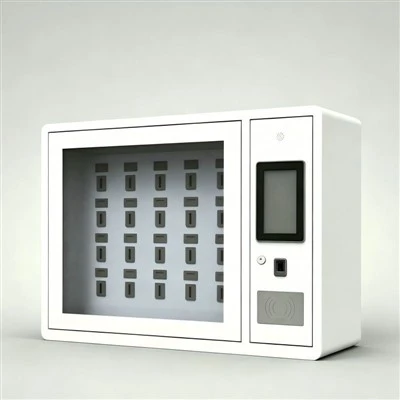
A smart key cabinet works by replacing individual physical locks on each key hook with a locking mechanism that’s controlled by software. Each hook is assigned to a specific key—say, Hook 7 is the key to Server Room B, Hook 12 is the key to the Executive Office Suite, Hook 19 is the key to the Warehouse Back Door. Then, you set permissions for every user in your system: “John from IT can take Hook 7 between 8 a.m. and 6 p.m. on weekdays, but cannot access Hook 12.” “Maria from Events can take Hook 12 between 9 a.m. and 5 p.m. on meeting days, but cannot access Hook 7.” You can even set time limits: John can only take Hook 7 for 4 hours at a time, so he has to bring it back to put it away, not leave it in his desk for weeks. When John scans his access card (or uses a PIN, or his phone app) at the cabinet, the system checks his permissions. If he’s allowed to take Hook 7, the hook unlocks; if not, it stays locked, and he gets a notification that he doesn’t have permission for that item. That’s how you restrict access to specific keys—not by hiding them, but by matching who’s asking to what they’re allowed to take.
This isn’t just theory, by the way. I worked with a construction company last year that had a problem with site keys going missing all the time. Their subcontractors would take a site key, use it for a day, and then lose it, costing thousands to rekey locks and get the site back open. They installed our smart key system, and set permissions: each subcontractor foreman is only allowed to take the keys to the sites they’re working on that week, and only between 7 a.m. and 7 p.m. on work days. If a foreman needs access to a different site, they have to request permission from the site manager, who can approve it remotely from their phone. In the first 6 months after installation, they cut missing keys by 85% and had no unauthorized access to sites by subcontractors who weren’t supposed to be there. That’s real, tangible results from restricting access to specific keys.
Now, what about USB drives? USBs have a unique challenge that keys don’t: they hold data, so restricting access isn’t just about physical access to the USB, it’s about making sure the right person is the one taking it, and that it comes back so you can track who had it if something goes wrong. A smart USB cabinet works a little differently than a key cabinet, but the permission logic is exactly the same. Each USB is tagged with a unique ID—usually a small RFID chip embedded in the cap or the body, so the system can tell exactly which USB is being taken. Then, you assign permissions to users and teams: “Only Jane in the Marketing department can take the USBs labeled Q3 Campaign 2024.” “Only the IT security team can take the USBs that have company-wide security training files.” “Undergraduate researchers cannot access any USBs with student research data.”
One client that’s a healthcare provider told me they have strict HIPAA rules about patient data, so they can’t let unauthorized staff take USBs with patient records. They implemented our smart USB cabinet, and set permissions so that only care coordinators assigned to a specific patient group can take the USBs with that group’s records. When a care coordinator is out on leave, their permissions are automatically revoked, so no one else can take the USBs they had access to. They also get an alert every time a USB is taken after hours, which helps them spot if a USB is being taken without authorization. That’s compliance, which is huge for healthcare—HIPAA fines can be hundreds of thousands of dollars if data is leaked because of an unregulated USB.
Wait, but what if you have a mix of keys and USBs that you need to manage together? Like a school that has keys to classroom doors and USBs with lesson plans. We’ve also designed combined smart cabinets that handle both, so you don’t need two separate systems. You can set rules that apply to both: for example, a substitute teacher can only take the key to their assigned classroom and the USB with that day’s lesson plans, nothing else. That way, substitutes have everything they need to do their job, but can’t accidentally grab a key to the principal’s office or a USB with confidential student grades.
Now, I know what some of you are thinking: This sounds complicated. Can I really set all these permissions without needing an IT team to tweak them every week? The short answer is yes. Our systems are designed so that facility managers, IT directors, or anyone with basic computer skills can set up permissions, adjust them when new employees join or teams change, and pull reports without needing to call us for help. The dashboard is web-based, so you can adjust permissions from your desk, or even on your phone when you’re out of the office. For example, if a new project manager joins and needs access to server room keys, you can log into the dashboard, find their user profile, and grant access to the relevant key hooks in 2 clicks. If an employee leaves, you can revoke all their access in one go, so they can’t come back and take a key or USB after they’re no longer with the company.
Another common concern: What about emergency access? What if there’s a fire, or a server room outage, and someone needs a key that they don’t normally have permission for? That’s a feature, not a bug. All our systems have an override function for emergency situations. You can set a small group of senior staff—like the facilities director, IT director, or site manager—to have temporary emergency access, or schedule emergency access for specific situations. For example, if there’s a scheduled server maintenance after hours, you can grant IT team members temporary access to the server room keys for that night only, so they don’t have to wait for someone to come in and unlock the cabinet. Most importantly, every access action is logged, so you can go back and see who took what, when, and why—even if it was an emergency. That log is invaluable for audits, accident investigations, or just figuring out why a key went missing last month.
Let’s talk about common mistakes people make when trying to restrict access to keys and USBs. The first mistake is going too strict too fast. I’ve had clients come to me and say, “We want everyone to only access exactly what they need, nothing more,” and then they set permissions so tight that no one can do their job. For example, a small office I consulted with tried to restrict access so that the admin assistant couldn’t take the key to the front door, which meant no one could let in a delivery when the receptionist was out. The key is to balance security and usability. The best systems let people do their jobs without jumping through hoops. So when setting permissions, ask: What does this person need to do their job? Don’t restrict access for the sake of restricting access.
The second mistake is not using the access logs. A lot of clients set up the system, set the permissions, and then ignore the logs. But the logs are where you find gaps. For example, if you notice that the events team is regularly asking for access to server room keys, that’s a sign that your permission structure is wrong—maybe events needs access to the server room to set up AV equipment, so you should update their permissions instead of just denying them. The logs also help you spot abuse, like someone taking a key every day that they don’t need, or taking a USB home every weekend.
The third mistake is using a system that’s not scalable. If you’re a small business with 10 keys, a basic smart cabinet works. But if you’re a manufacturing facility with 500 keys and 200 USBs, you need a system that can handle that volume without slowing down, and that integrates with your existing tools—like your HR system, so when you hire a new employee, their access is automatically added, or when they leave, it’s automatically revoked. Our systems integrate with most common HR and project management tools, so you don’t have to manually update every user’s permissions every time someone’s role changes.
So, going back to the original question: Can I restrict access to specific keys or USBs? Absolutely. It’s not just possible—it’s the most practical way to manage physical assets in any organization that cares about security, accountability, and compliance. The right system doesn’t replace trust; it complements it. It lets you trust your team to do their jobs, while also making sure that sensitive areas and data are protected. It eliminates the “lost key” headache, the “who took that USB?” confusion, and the stress of wondering if unauthorized people have access to your most important assets.
If you’re tired of your keys and USBs being unregulated, if you’re dealing with compliance risks, or if you just want to cut down on the time you spend replacing lost assets or tracking down where someone put a key or USB, it’s time to talk to someone who knows smart key and USB cabinets. We’ve helped everything from 10-person startups to large hospital systems, universities, and construction sites set up systems that work for their specific needs. We don’t do one-size-fits-all solutions—we work with you to figure out exactly which keys and USBs need to be restricted, who needs access to them, and how to balance security with ease of use.
If you’re ready to stop playing catch-up with lost keys and risky USBs, reach out to discuss your needs. We can walk you through how our systems work, show you real client results, and help you build a solution that fits your team without adding unnecessary hassle.
Smart Office Cabinet References
National Fire Protection Association. (2021). Life Safety Code Handbook. NFPA.
Health Insurance Portability and Accountability Act. (1996). Public Law 104-191. U.S. Department of Health and Human Services.
Occupational Safety and Health Administration. (2022). Access Control for Hazardous Areas. OSHA.
Hangzhou Dongjie Intelligent Technology Co., Ltd.
Hangzhou Dongjie Intelligent Technology Co., Ltd. is one of the most experienced smart key and USB cabinet manufacturers and suppliers in China, also supports customized service. Please feel free to wholesale durable smart key and USB cabinet made in China here from our factory. For quotation, contact us now.
Address: 1st Floor, Building 2, No.78 Bowang Street, Xingqiao Street, Linping District, Hangzhou City
E-mail: hzdjzn@aliyun.com
WebSite: https://www.cndongjiesmart.com/
